
OTOS
A localizer that uses the SparkFun Optical Tracking Odometry Sensor (OTOS).
Common Mistakes
- Make sure the OTOS is plugged into an I2C port other than port 0. This is because the Control Hub's built in IMU uses port 0.
Automatic Tuning
The OTOS AutoTuner can automatically determine your OTOSConfig, which includes the name, offsets, and scalars.
Add the Tuner
Inside your Tuning class, add:
@Tuner
public static Procedure otosTuner() {
    return new OTOSTuner();
}
Build and send the updated code to your Robot.
Open AutoTune
While connected to the Robot Controller, open the following address in your browser: http://192.168.43.1:10158
Select OTOS Procedure.
OTOS Setup
First, enter the HardwareMap name of your OTOS.
For example, if your OTOS is named otos in your Configuration on your Driver Hub, enter:
otosin the HardwareMap Name field. Then press Submit.
Scalar Tuner Setup
In the two following steps, you will first tune your OTOS's linear scalar and then its angular scalar. To set this up, first enter the distance (inches) you will push your robot and the number of times you will turn the robot.
The default values are recommended: pushing the robot 48 inches and turning it 10 times.
Tip
For the next two steps, we recommend lining the robot up against reference lines on the field to ensure you aren't off by a couple inches degrees due to human error in your pushing or turning.
Linear Scalar Identification
Start the test, and push your robot exactly the number of inches you specified. Then stop the OpMode.
Angular Scalar Identification
Start the test, and turn your robot exactly the number of times you specified. Then stop the OpMode.
Offsets Identification
Press Continue, then rotate the robot in place 180 degrees counterclockwise.
After the robot has completed the rotation, stop the OpMode.
The tuner will automatically calculate the x and y pod offsets.
Applying the Results
Once the tuner is complete, open the Java tab.
AutoTune will generate an OTOSConfig using the values determined during the tuning procedure.
Copy the generated configuration into the OTOSConfig in your Constants.java file.
The generated configuration includes:
- HardwareMap name
- Angular Scalar
- Linear Scalar
- X offset
- Y offset
Manual Offset Tuning
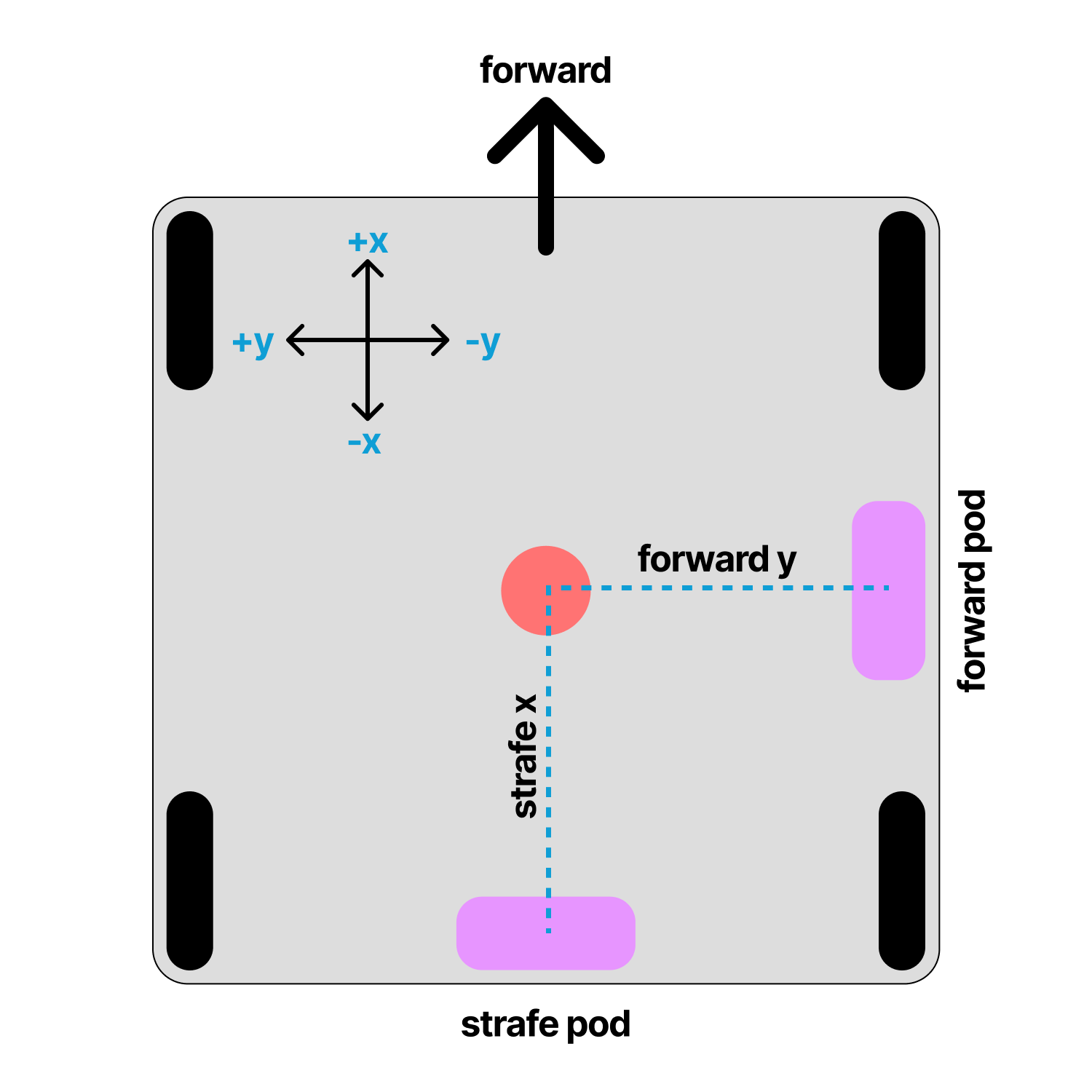
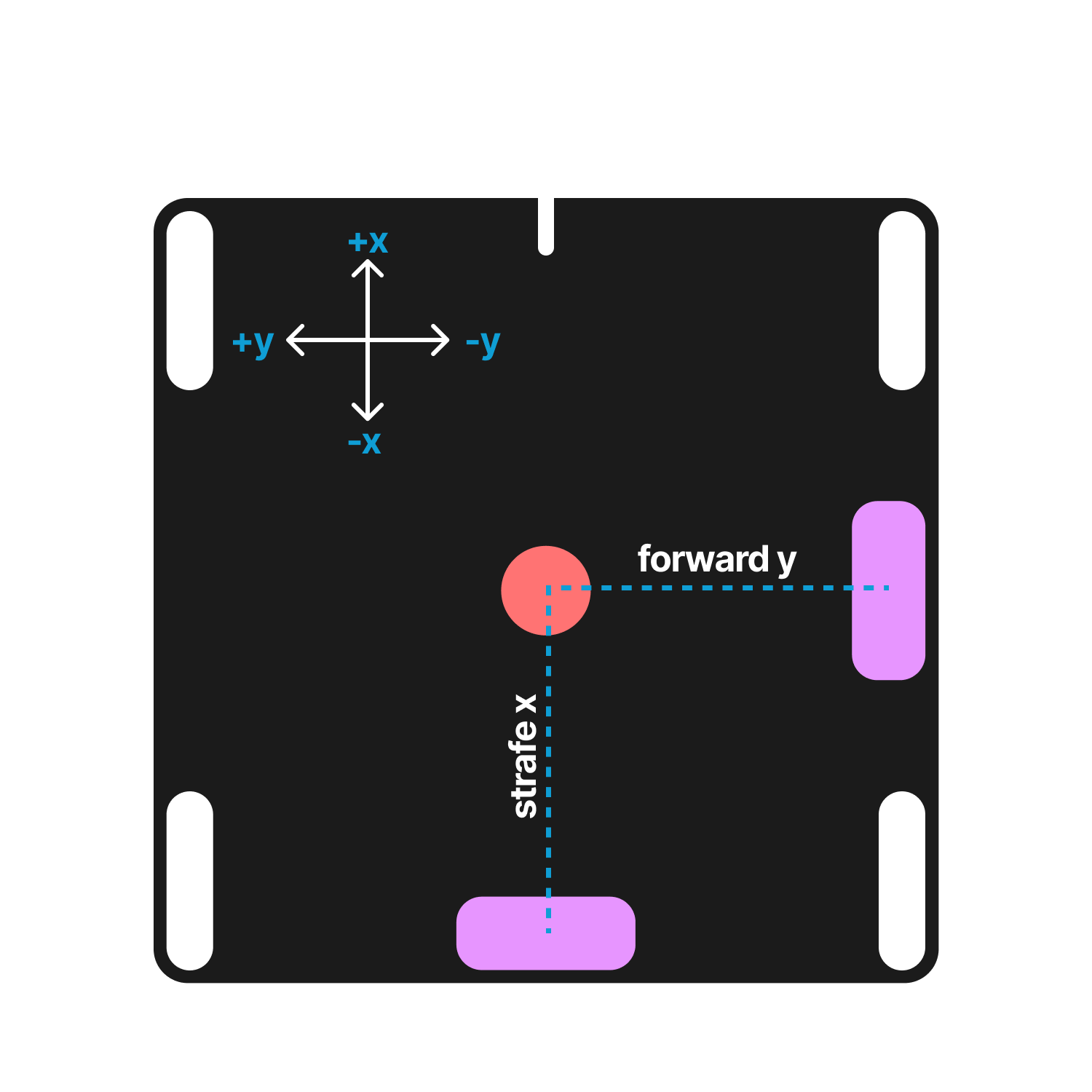
Offsets can also be found manually using the diagram below. Offsets are in inches.
Set your odometry pod offsets to define where they are relative to your robot's center of rotation.
Testing the Localizer
Once you have completed the tuning steps, you can test your localizer as described on the localization page.
Congratulations on successfully tuning your localizer!
Troubleshooting
If you have any problems, see the troubleshooting page.
Last updated on